
This is currently a windows only guide.
Start by launching the launcher!
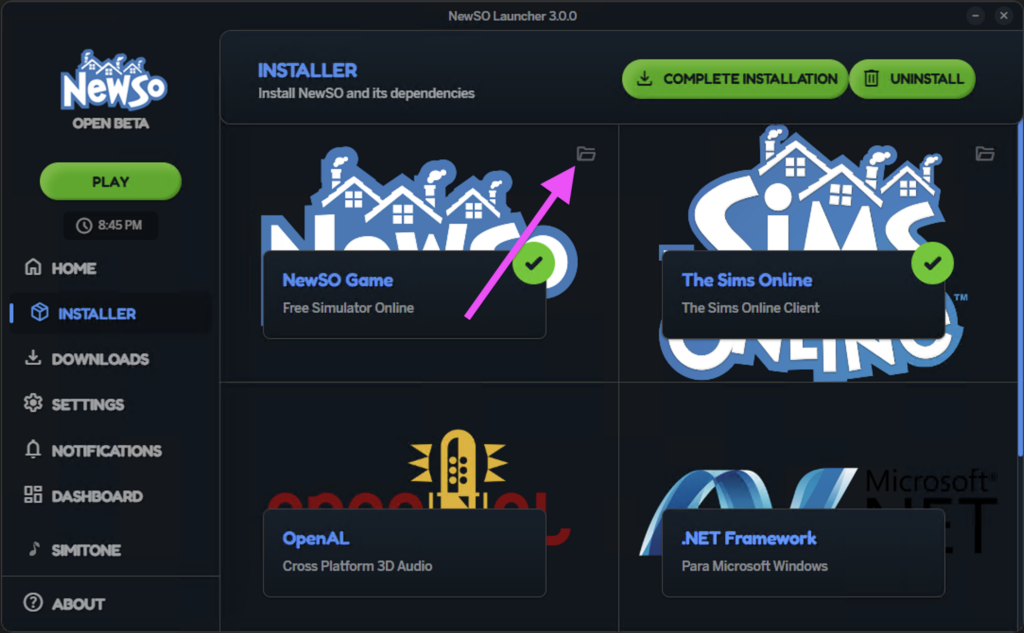
In the NewSO Launcher, head to the installer and click the folder by NewSo Game
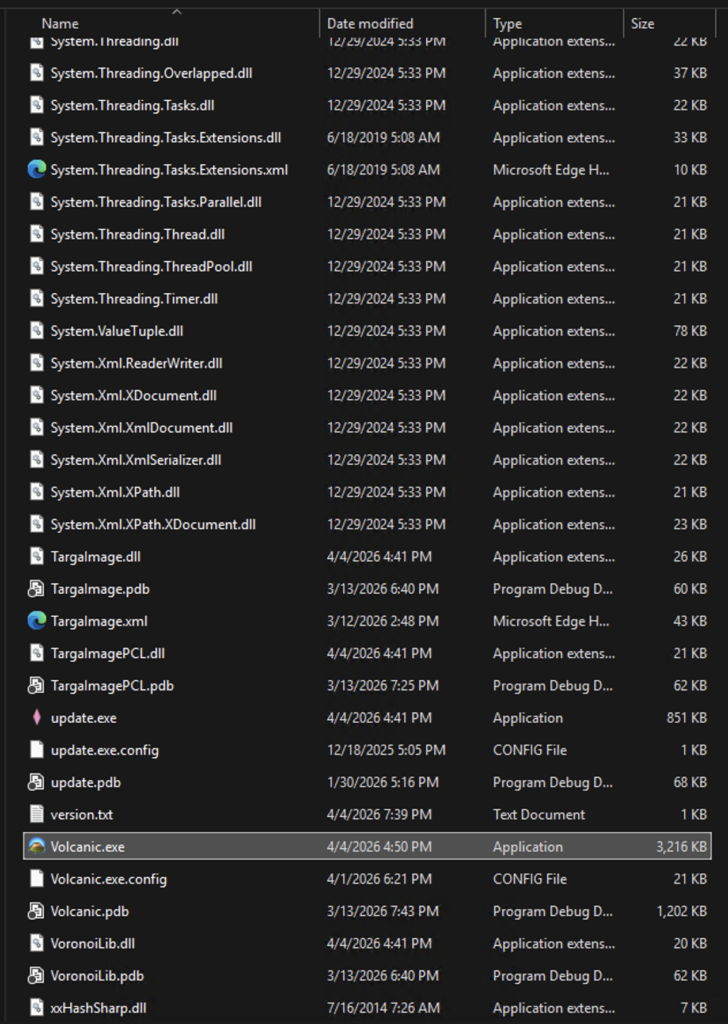
Once you are in your game folder locate Volcanic.exe and launch it!
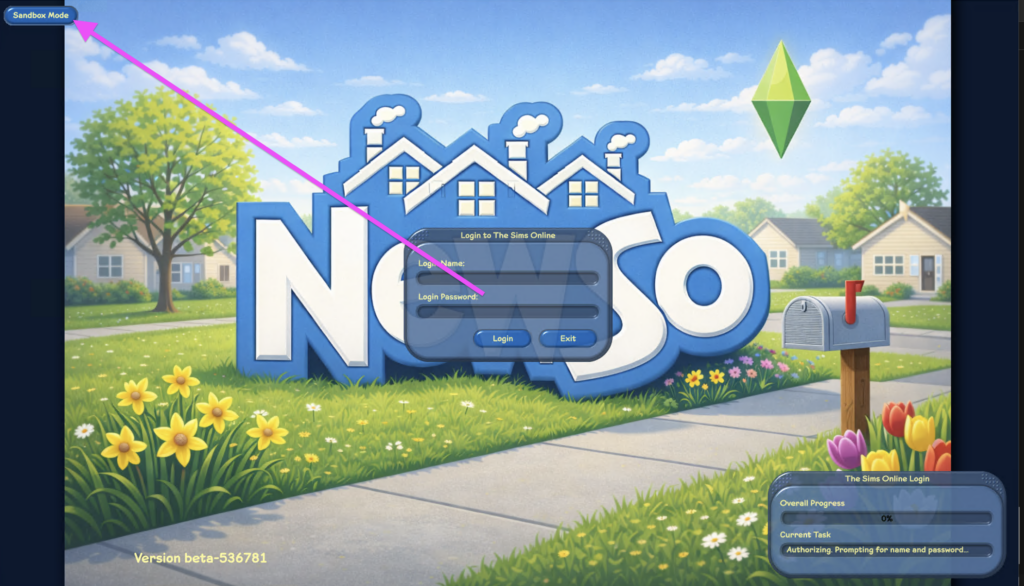
Once you have launched the game and landed on the login screen, in the top right hand corner click on sandbox mode. If you’re an Admin or Mod you can use volcanic’s features on the live server, if you are a regular user you will need to use sandbox mode to spawn objects.
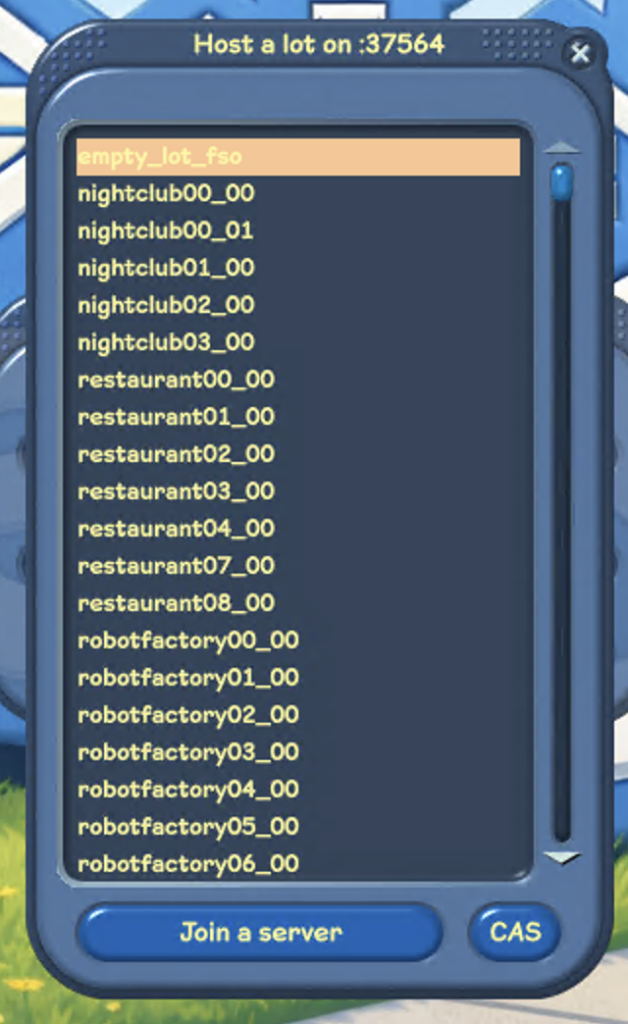
Once you click sandbox mode, click on “empty_lot_fso” if you have never used sandbox before it may prompt you to create-a-sim, create the sim
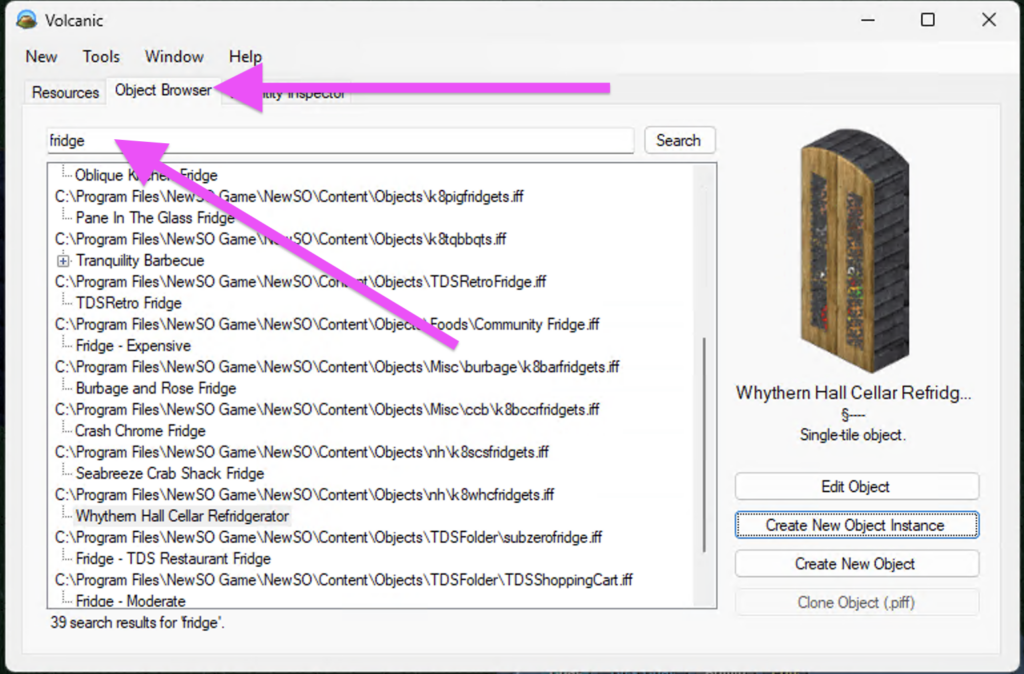
The volcanic window will launch alongside your game, to look at objects in the game files, click on the object browser, you can search for items for expansion packs as well DLC content. There are a lot of untested objects and objects that need to be tested. Once you find what you’re looking for click on create new object instance. The object should then spawn in your sandbox lot.
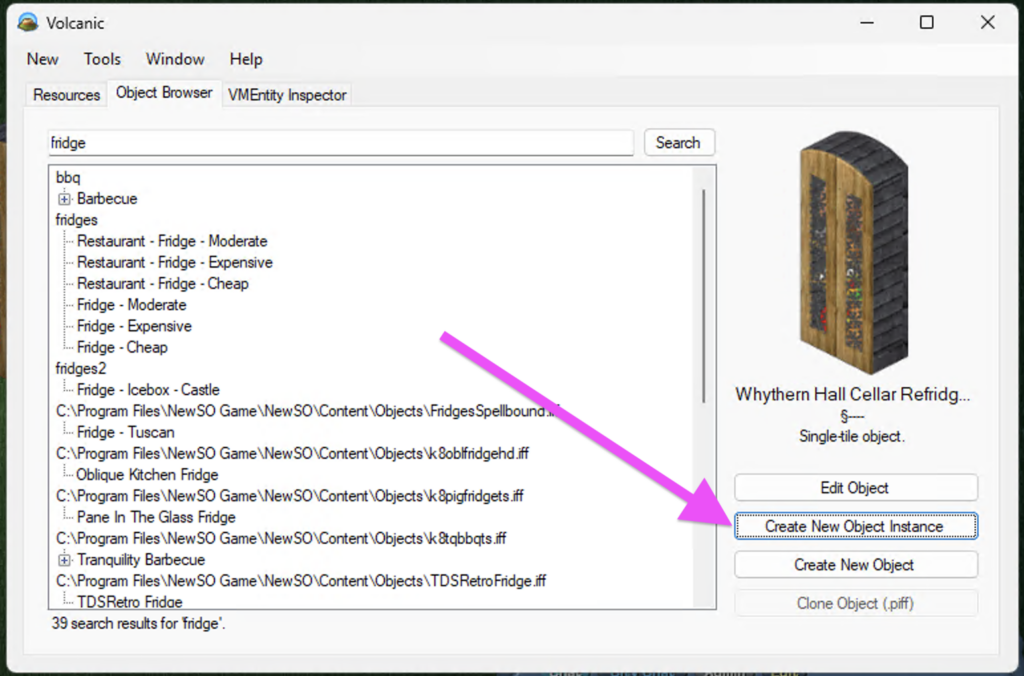
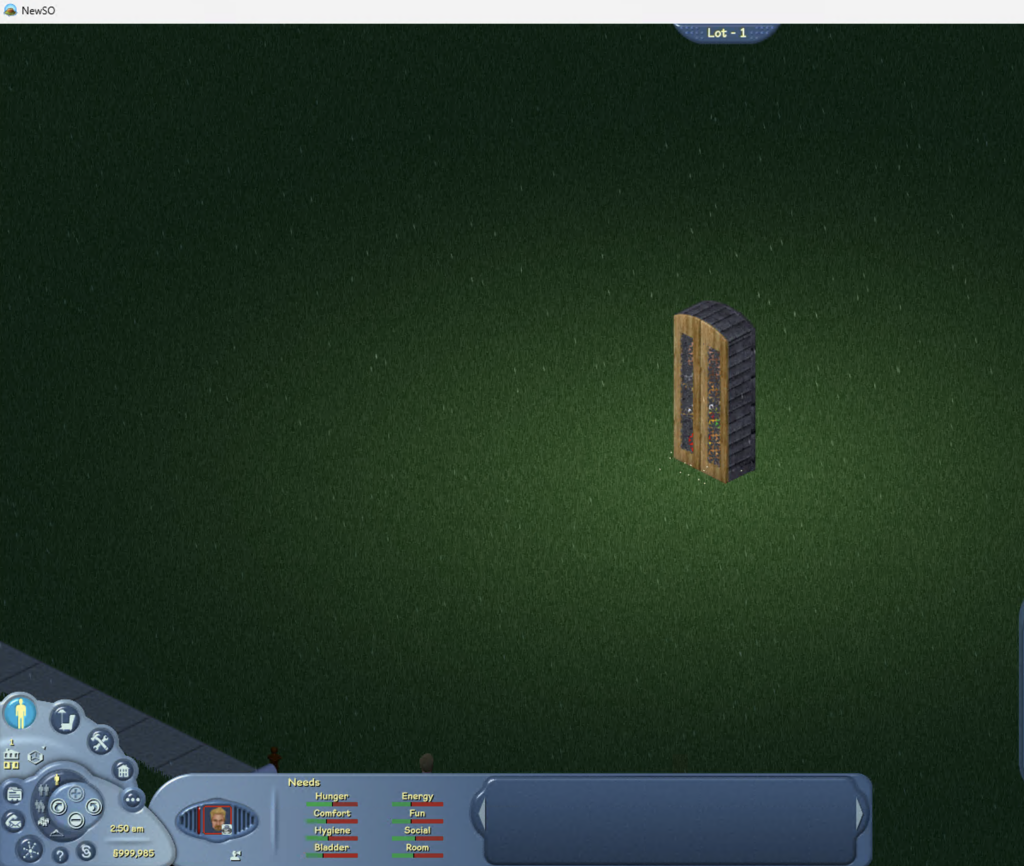
Sometimes you may need to move around the lot to get objects to spawn.
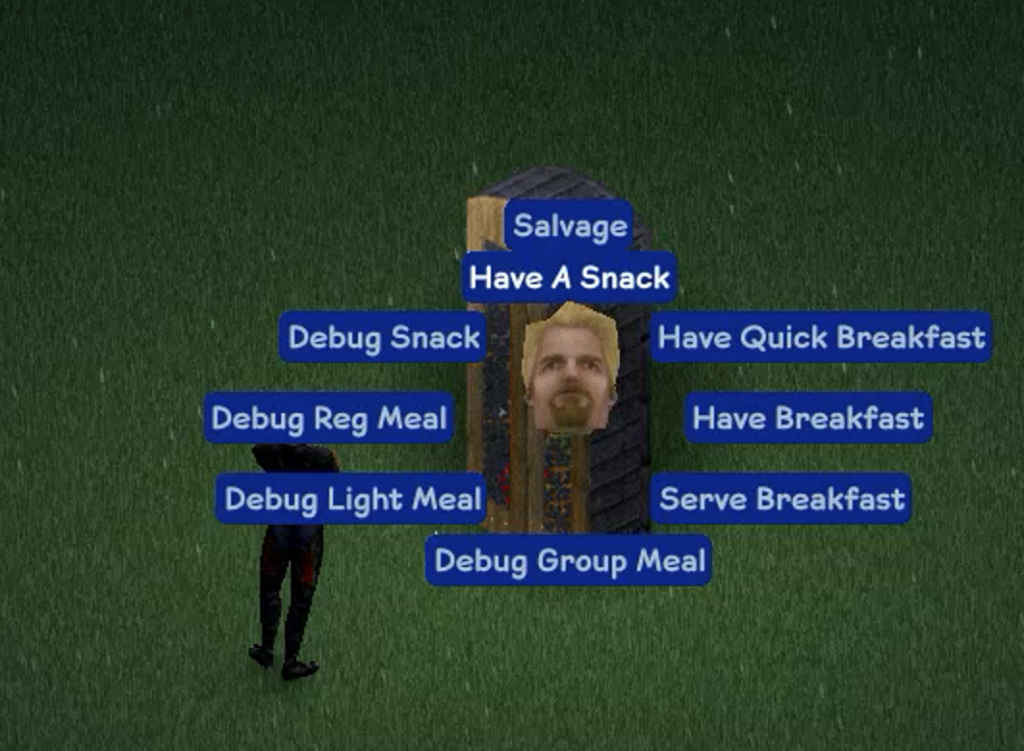
Try the objects interactions to verify the object works with the NewSo Engine.
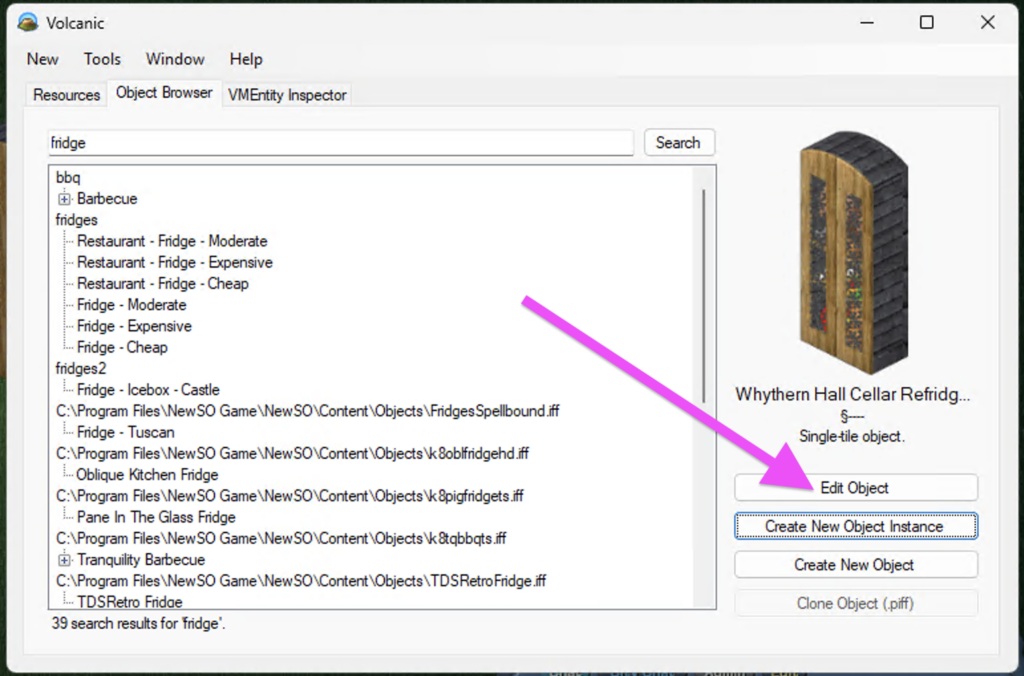
If everything works out click on Edit Object
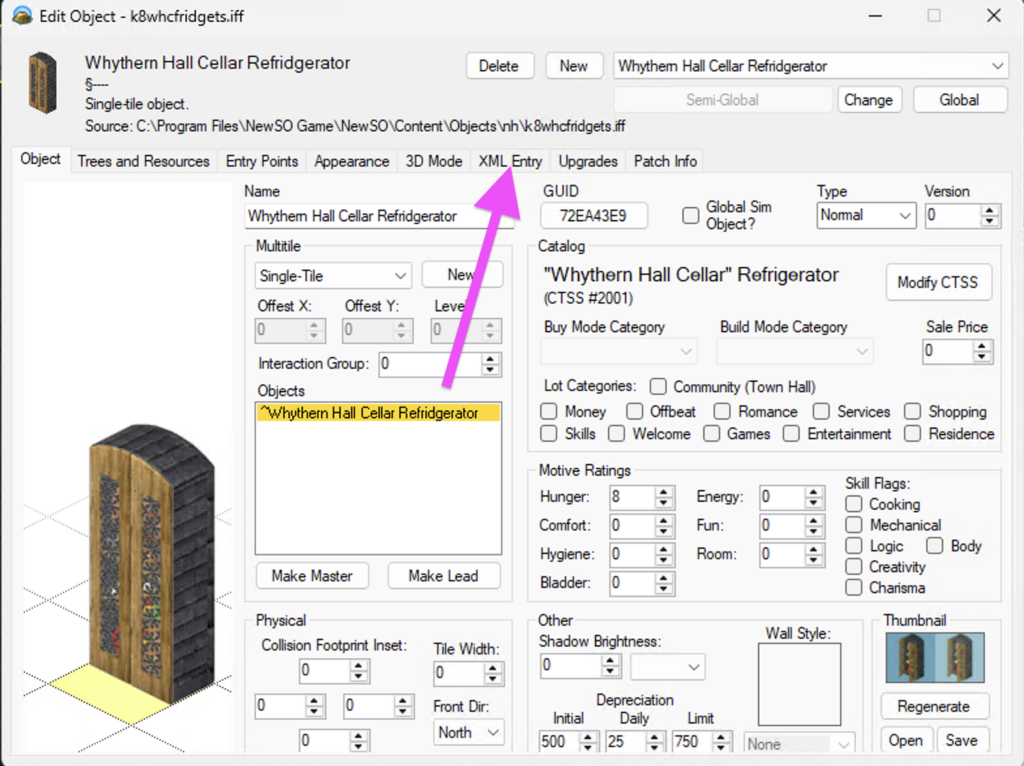
Once you are in the object editor click XML entry
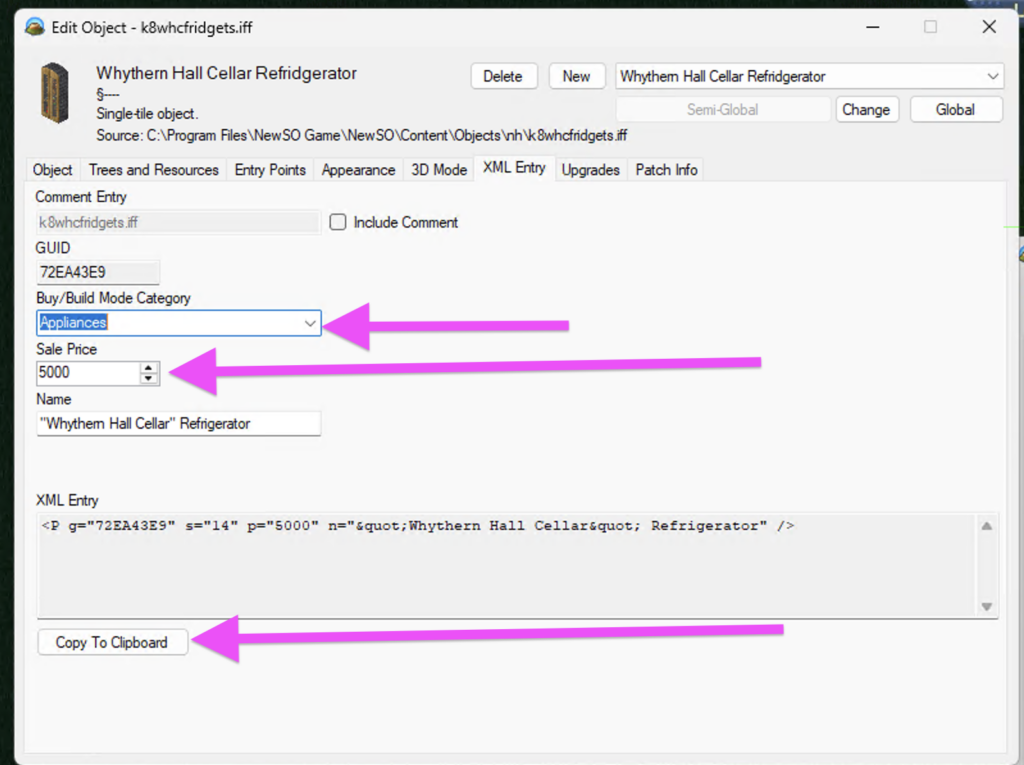
Once you are in the XML entry page, you will need to do 3 things
- Change the buy/build mode category, this is where the object will be in the catalog
- Sale Price, this is the objects price
- Once you have completed those things, click on copy to clipboard, send this to our catalog discord channel and one of our admins will do final testing.
XML Entry Explained
G= is the object Id in the catalog
S = Buy/Build Mode Category
- 29 = Debug Menu
- 12 = seating
- 13 = Surface
- 14 = Appliances
- 15 = Entertainment
- 16 = Skill and job objects
- 17 = Decorative
- 18 = Misc
- 19 = Lighting
- 20 = Pets and Pet objects
- 0 = Door Tool
- 1 = Window Tool
- 2 = stair tool
- 3 = plant tool
- 4 = fireplace tool
- 5 = water tool
- 7 = wall and fence tool
p = Price
N = Name